
In plain terms: data science usually begins as loose Jupyter notebooks, which are hard to run reliably in production. Kedro is a free, open-source Python framework that imposes a clean, repeatable structure on that work so it can move from experiment to production with far less rewriting.
Image by editor
Introduction
data science projects Typically exploratory Python starts out as notebooks but need to be moved into production settings at some level, which can be difficult if not carefully planned.
Developed by QuantumBlack (AI by McKinsey), kedrois an open-source tool that bridges the gap between experimental notebooks and production-ready solutions by translating concepts around project structure, scalability, and reproducibility into practice.
This article introduces and explores the main features of Kedro, guiding you through its core concepts for better understanding before diving deeper into this framework to address real data science projects.
Getting Started with Kedro
The first step to using Kedro is, of course, to install it in a running environment, ideally an IDE – Kedro cannot be fully leveraged in a notebook environment. For example, open your favorite Python IDE, VS Code, and type in the integrated terminal:
Next, we create a new kedro project using this command:
If the command works well, you will be asked some questions, including the name of your project. we will name it Churn Predictor. If the command does not work, it may be due to a conflict related to installing multiple Python versions. In that case, the cleanest solution is to work in a virtual environment within your IDE. These are some quick fix commands to create one (ignore them if the previous commands to create a kedro project are already working!):
python3.11 -m venv venv

source venv/bin/activate

pip install kedro

kedro --version
Then select the following Python interpreter in your IDE to work with from now on: ./venv/bin/python.
At this point, if everything worked properly, you should have a complete project structure on the left (in the ‘Explorer’ panel in VS Code) churn-predictor. In the terminal, let’s go to the main folder of the project:
It’s time to have a glimpse of the main features of Kedro through the newly created project.
Discovering the Basic Elements of Kedro
The first element we will introduce – and create ourselves – is data catalog. In Kedro, this element is responsible for separating data definitions from the main code.
There is already an empty file created as part of the project structure that will act as the data catalog. We just need to find it and fill it with content. In IDE Explorer, inside churn-predictor Project, go to conf/base/catalog.yml And open this file, then add the following:
raw_customers:
  type: pandas.CSVDataset
  filepath: data/01_raw/customers.csv

processed_features:
  type: pandas.ParquetDataset
  filepath: data/02_intermediate/features.parquet

train_data:
  type: pandas.ParquetDataset
  filepath: data/02_intermediate/train.parquet

test_data:
  type: pandas.ParquetDataset
  filepath: data/02_intermediate/test.parquet

trained_model:
  type: pickle.PickleDataset
  filepath: data/06_models/churn_model.pkl
In short, we have just defined (not created yet) five datasets, each with an accessible key or name: raw_customers, processed_featuresAnd so on. The main data pipeline we will create later should be able to refer to these datasets by their names, so input/output operations should be separate and completely isolated from the code.
now we will need some data It serves as the first dataset in the data catalog definitions above. You can take example of this this sample Download artificially generated customer data, and integrate it into your Kedro project.
Next, we navigate data/01_rawCreate a new file named customers.csvAnd add the contents of the example dataset we use. The easiest way is to view the “raw” contents of the dataset file in GitHub, select all, copy, and paste it into your newly created file in the Kedro project.
Now we will create a kedro line pipeWhich will describe the data science workflow that will be applied to the raw dataset. In the terminal, type:
kedro pipeline create data_processingThis command creates multiple Python files inside src/churn_predictor/pipelines/data_processing/. now we will open nodes.py And paste the following code:
import pandas as pd
from typing import Tuple

def engineer_features(raw_df: pd.DataFrame) -> pd.DataFrame:
    """Create derived features for modeling."""
    df = raw_df.copy()
    df('tenure_months') = df('account_age_days') / 30
    df('avg_monthly_spend') = df('total_spend') / df('tenure_months')
    df('calls_per_month') = df('support_calls') / df('tenure_months')
    return df

def split_data(df: pd.DataFrame, test_fraction: float) -> Tuple(pd.DataFrame, pd.DataFrame):
    """Split data into train and test sets."""
    train = df.sample(frac=1-test_fraction, random_state=42)
    test = df.drop(train.index)
    return train, test
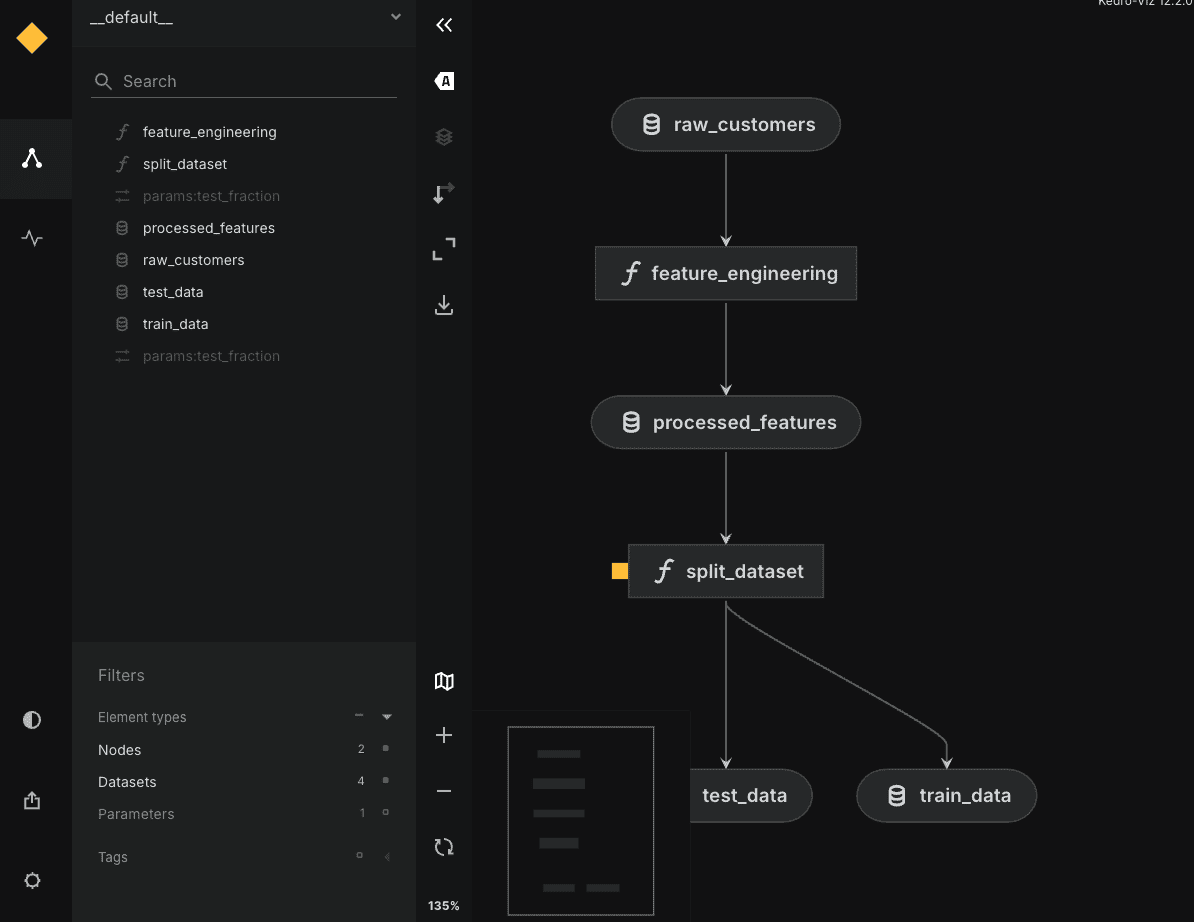
The two functions we just defined work like this nodes Which can apply transformations to datasets as part of a reproducible, modular workflow. The first applies some simple, illustrative feature engineering by creating several derived features from the raw features. Meanwhile, the second function defines the partition of the dataset into training and testing sets, for example for further downstream machine learning modeling.
There is another Python file in the same subdirectory: pipeline.py. Let’s open it and add the following:
from kedro.pipeline import Pipeline, node
from .nodes import engineer_features, split_data

def create_pipeline(**kwargs) -> Pipeline:
    return Pipeline((
        node(
            func=engineer_features,
            inputs="raw_customers",
            outputs="processed_features",
            name="feature_engineering"
        ),
        node(
            func=split_data,
            inputs=("processed_features", "params:test_fraction"),
            outputs=("train_data", "test_data"),
            name="split_dataset"
        )
    ))
Part of the magic happens here: Pay attention to the names used for the inputs and outputs of the nodes in the pipeline. Just like Lego pieces, Here we can flexibly reference different dataset definitions in the data catalogOf course, starting with the dataset containing the raw customer data we created earlier.
There’s one last couple of configuration steps left to get everything working. The proportion of test data to the split node is defined as a parameter that needs to be passed. In Kedro, we define these “external” parameters by adding them to the code conf/base/parameters.yml file. Let’s add the following to this currently empty configuration file:
Also, by default, the Kedro project indirectly imports modules from the PySpark library, which we will not actually need. In settings.py (inside the “src” subdirectory), we can disable it by commenting out and modifying the first few existing lines of code as follows:
# Instantiated project hooks.
# from churn_predictor.hooks import SparkHooks  # noqa: E402

# Hooks are executed in a Last-In-First-Out (LIFO) order.
HOOKS = ()
Save all changes, make sure pandas is installed in ya running environment, and get ready to run the project from the IDE terminal:
This may or may not work initially depending on the version of Kedro installed. If it doesn’t work and you get DatasetErrorpossible solution is pip install kedro-datasets Or pip install pyarrow (Or maybe both!), then try running again.
Hopefully, you might get a bunch of ‘Information’ messages informing you about different steps in the data workflow. This is a good sign. In data/02_intermediate In the directory, you can find several Parquet files containing the results of data processing.
For wrapping, you can optionally pip install kedro-viz and run kedro viz To open an interactive graph of your engaging workflow in your browser, as shown below:
Wrapping Up
We’ll leave further exploration of this tool for a possible future article. If you arrived here, you were able to create your first Kedro project and learn about its main components and features, understanding how they interact along the way.
Very good!
ivan palomares carrascosa Is a leader, author, speaker and consultant in AI, Machine Learning, Deep Learning and LLM. He trains and guides others in using AI in the real world.
When to use Kedro, and its limits
Kedro originated at QuantumBlack, the AI arm of McKinsey, and was released as open source in 2019; in 2022 it was donated to the Linux Foundation’s LF AI & Data, where it reached graduated status in December 2024, signalling a mature, independently governed project. Its strengths are structure and reproducibility — a standard project layout, a data catalogue that separates configuration from code, and pipelines that are easy to test and version. Those same conventions are also its main cost: Kedro adds a learning curve and a degree of boilerplate that can feel heavy for a quick one-off analysis, and it is designed around scripts and an IDE rather than notebooks, so notebook-centric workflows lose some of its benefits. It is most worthwhile when a project is expected to grow, be maintained by a team, or run repeatedly in production, and less so for small, throwaway exploration. Full documentation is available on the Kedro project site.
