
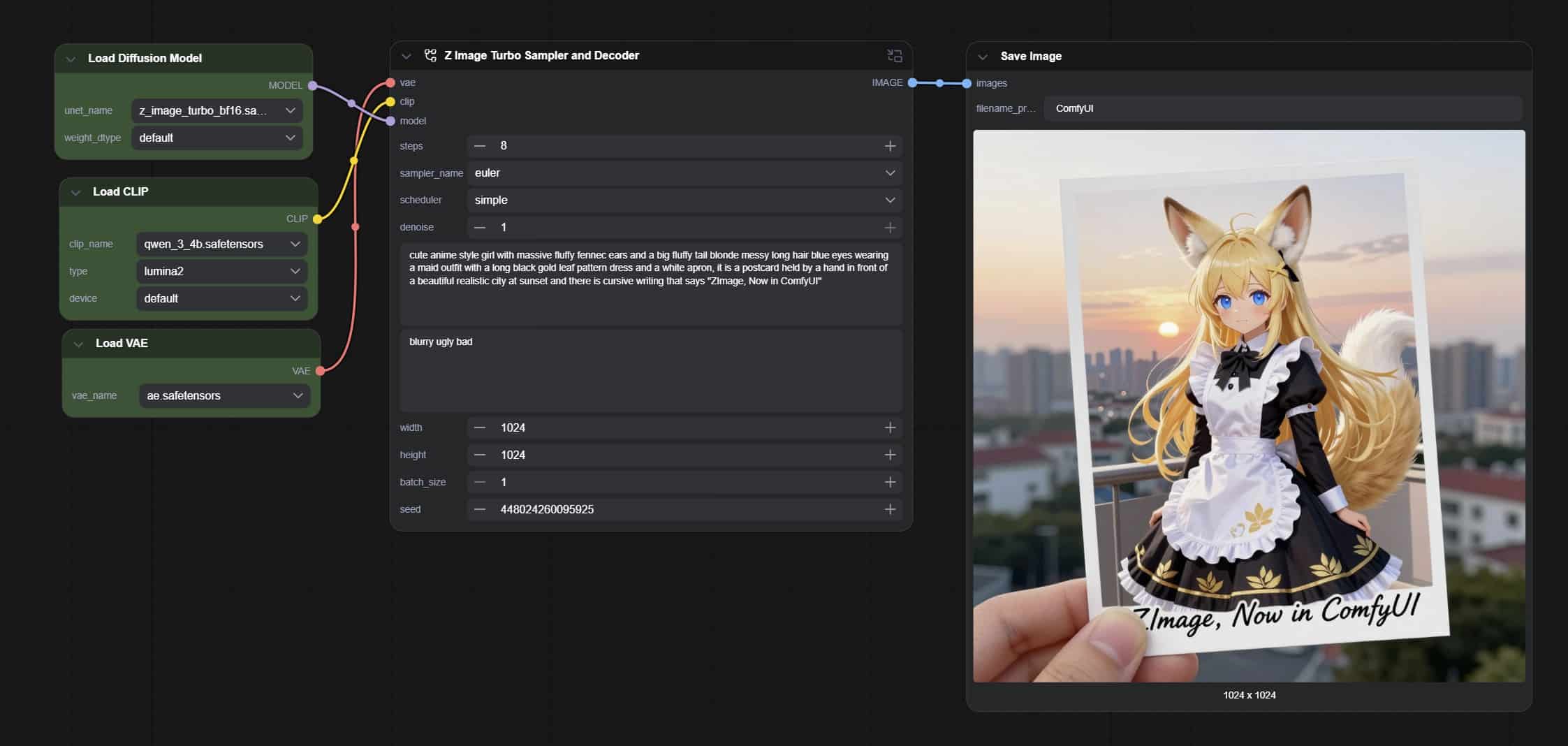
If your ComfyUI workflow is starting to look like spaghetti, subgraphs are about to become your best friend. In this guide, I’ll show you how to take a cluttered workflow and turn it into a clean, reusable one. subgraphThis not only streamlines your canvas but also lets you create pre-built mini-systems – like z image turbo The setup we are using in this example.
What does the finished subgraph look like
Before we start, here’s the type of result we’re aiming for: a single clean node where all you need to do is plug in your model, CLIP, VAE, and enter your prompt+settings.
Getting Started with a Standard Workflow
We start with a typical image creation workflow that includes:
- model loader
- clip
- VAE
- Sample
- positive/negative sign
- image size
- KSampler
- vae decode
(Insert Image: Screenshot of the original full workflow)

Step 1: Select nodes to combine
Highlight all the nodes you want to merge into a subgraph – essentially your entire generation chain except the external model inputs.
Once selected:
- Click subgraph
- ComfyUI will automatically wrap nodes into a reusable unit

Comment: If your UI looks different, update to the latest ComfyUI build. I am also using new modern node design interface, which you can enable in Settings.
Step 2: Understanding the new subgraph node
After creating the subgraph, you will see input ports like:
- Seed
- Sample
- clip
- VAE
- positive sign
- negative sign

This is where you choose which internal settings to display externally.
Step 3: Display additional controls
Inside the subgraph editor, you can highlight additional parameters such as:
- step
- name of sampler
- scheduler
- denoise
Simply click on a parameter, select to exposeAnd ComfyUI will create a new input on the subgraph node.

To allow vertical, horizontal, or custom sizes, also highlight: width, height, and batch size.
Step 5: Returning to the main workflow
After exiting the subgraph, your workflow now shows single clean node Containing all required inputs:
- signals
- step
- Sample
- scheduler
- Seed
- width height

At this point, name it something like turbo sampler,
Bonus: Reordering and Arranging Subgraph Parameters
Inside the subgraph editor, you can also rearrange your controls for a more professional layout. For example:
- positive sign at the top
- negative sign below it
- Seed placed above width/height
You can also hide optional settings or mark them as visible.

final thoughts
Subgraphs are a great way to streamline your ComfyUI workflow. With just a few clicks, you can turn a long series of interconnected nodes into clean, organized, reusable modules. This not only helps with complex builds but also makes your workflow demonstrations more sophisticated.
If you have any questions, feel free to comment below. Thanks for reading, and I’ll see you in the next one!
If you would like to support our site please consider buying us ko-fi, take a product Or subscribeNeed a fast GPU, get access to the fastest GPU for less than $1 per hour RunPod.io
