
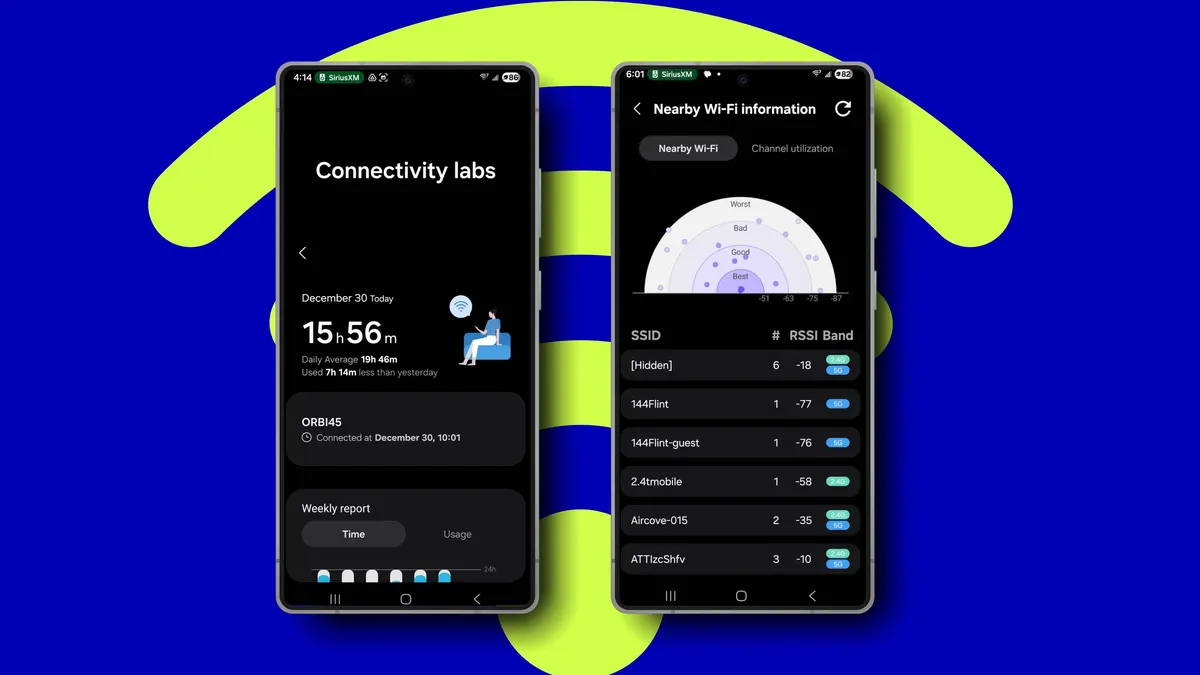
You’ll need to access your Intelligent Wi-Fi settings by opening your Settings app, going to the Connections tab, then Wi-Fi, then the three dots in the upper right corner (for extended settings) and tapping Intelligent Wi-Fi.
Also: My proven 4-step method to fix slow Android phones – and it works every time
To activate Connectivity Lab, scroll to the bottom of the Intelligent Wi-Fi page and tap Software version seven times. On my S25 Plus, it’s labeled “Intelligent Wi-Fi 8.0.0”. As you tap repeatedly, a pop-up message should appear, giving you a countdown as to how many more taps are left to activate Connectivity Lab.
Once this is done, you will find the secret menu at the bottom of the page. Click it, and you’re in business.
Also: 7 settings I changed on my Samsung phone to significantly improve battery life
Valuable information about your Wi-Fi network appears at the top of the display. It starts with how long your latest connection has been active, what access point you’re currently using, and how long you’ve been connected for the past week. It then displays which Wi-Fi bands and standards you are using and for how long.
In my case, since I use a high-end Orbi 970 network powered by Wi-Fi 7, most of my connection is on Wi-Fi 7 using multiple bands. In practice, my 1Gbps AT&T Fiber connection delivered just over a gigabit, with a tested speed of 1034Mbps, according to Ookla Speedtest. Now it’s faster.
Moving on, you will find more useful features.
