How Does Google Colab Work?
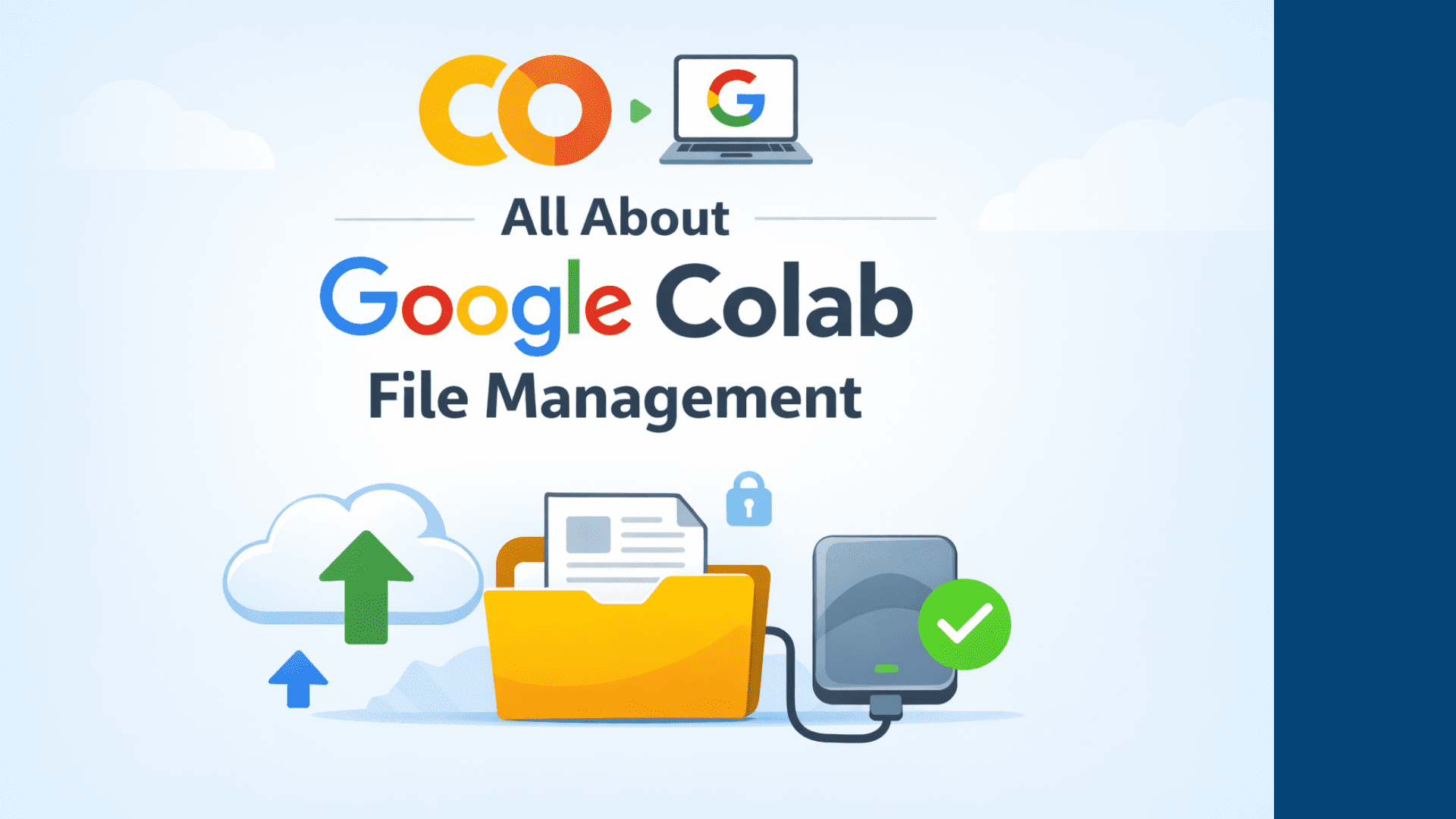
Google Colab Python is an incredibly powerful tool for data science, machine learning, and development. This is because it takes away the headache of local setup. However, one area that often confuses beginners and sometimes even intermediate users is file management.
Where do the files live? Why do they disappear? How do you upload, download or permanently store data? This article answers them all, step by step.
The biggest misconception is worth clearing up right away: Google Colab does not behave like a local laptop. Each time a notebook is opened, Colab provides a temporary virtual machine (VM), and once the session ends, everything stored inside it is cleared. This means:
- Locally saved files are temporary
- When runtime resets, files are gone
Your default working directory is:
whatever you save inside /content Will disappear once the runtime is reset.
Viewing Files in Colab
You have two easy ways to view your files.
Method 1: Using the Visual Way
This is the recommended approach for beginners:
- View left sidebar
- Click on the folder icon
- browse inside
/content
This is great when you just want to see what’s going on.
Method 2: Using the Python Way
This is useful when you are scripting or debugging paths.
import os
os.listdir('/content')
Uploading and Downloading Files
Let’s say you have a dataset or comma separated values (CSV) file on your laptop. The first method is to upload using the code.
from google.colab import files
files.upload()
A file picker opens, you select your file, and it appears /content. This file is temporary until it is moved somewhere else.
The second method is drag and drop. This method is simple, but the storage remains temporary.
- Open File Explorer (left panel)
- drag files directly in
/content
To download the file from Colab to your local machine:
from google.colab import files
files.download('model.pkl')
Your browser will download the file immediately. This works for csv, models, logs and images.
If you want your files to survive runtime reset, you should use Google Drive. To mount Google Drive:
from google.colab import drive
drive.mount('/content/drive')
Once you’ve authorized access, your drive appears here:
Anything saved here is permanent.
Recommended Project Folder Structure
A disorganized drive becomes painful very quickly. A neat structure you can reuse is:
MyDrive/
└── ColabProjects/
    └── My_Project/
        ├── data/
        ├── notebooks/
        ├── models/
        ├── outputs/
        └── README.md
To save time, you can use the following paths:
BASE_PATH = '/content/drive/MyDrive/ColabProjects/My_Project'
DATA_PATH = f'{BASE_PATH}/data/train.csv'
To save a file permanently Panda: :
import pandas as pd
df.to_csv('/content/drive/MyDrive/data.csv', index=False)
To load a file later:
df = pd.read_csv('/content/drive/MyDrive/data.csv')File Management in Colab
Working with Zip Files
To extract the zip file:
import zipfile
with zipfile.ZipFile('dataset.zip', 'r') as zip_ref:
    zip_ref.extractall('/content/data')
Using Shell Commands for File Management
Colab supports using Linux shell commands !.
!pwd
!ls
!mkdir data
!rm file.txt
!cp source.txt destination.txt
This is very useful for automation. Once you get used to it you will use it again and again.
Downloading Files Directly From the Internet
Instead of uploading manually, you can use wget: :
!wget https://example.com/data.csvor are using Demand Library in Python:
import requests
r = requests.get(url)
open('data.csv', 'wb').write(r.content)
It is highly effective for datasets and pre-trained models.
Additional Considerations
Storage Limitations
You should be aware of the following limitations:
- Colab VM disk space is around 100GB (temporary)
- Google Drive storage is limited by your personal quota
- Browser-based upload limit is approximately 5 GB
For large datasets, always plan in advance.
Best Practices
- Mount drive at the beginning of the notebook
- Use variables for paths
- Keep raw data read-only
- Separate data, models and output into separate folders
- Add a README file to each project folder
When not to use Google Drive
Avoid using Google Drive when:
- Training on extremely large datasets
- High-speed I/O is critical for performance
- You need distributed storage
Better options in these cases include storing data in a cloud object store such as Google Cloud Storage or Amazon S3 and streaming it into the notebook, or using Colab’s local VM disk for high-speed temporary I/O.
Limitations and What to Watch
Colab file management carries a few practical constraints worth remembering. The runtime is ephemeral by design, so anything not saved to Google Drive or an external store is lost when the session disconnects or times out, which can happen after periods of inactivity or when usage limits are reached. Mounting Google Drive is convenient but not ideal for very large datasets or workloads that need high-speed input/output, where a cloud object store or the VM’s local disk performs better. Free-tier storage and compute are limited and can change, and files handled through Drive are subject to Google account quotas. For anything important, keeping a durable copy outside the notebook and scripting the setup so it can be reproduced on a fresh VM remains the safest approach. Official guidance is maintained in the Google Colab FAQ.
Final Thoughts
Once the mechanics of Colab file management are clear, workflows become noticeably more efficient, with far less risk of lost files or rewritten code. Used together, these techniques support clean experiments and smooth transitions between sessions.
