

Operating a self-managed MLflow tracking server comes with administrative overhead, including server maintenance and resource scaling. As teams increase their ML usage, managing resources efficiently during peak usage and idle periods is a challenge. Organizations running MLflow on Amazon EC2 or on-premises can optimize costs and engineering resources by using Amazon SageMaker AI with serverless MLflow.
This post shows you how to migrate your self-managed MLflow tracking server to the MLflow app – a serverless tracking server on SageMaker AI that automatically scales resources based on demand while removing server patching and storage management tasks at no cost. Learn how to use mlflow export import Tools for migrating your experiments, runs, models, and other MLflow resources, including instructions for verifying the success of your migration.
While this post focuses on migrating from a self-managed MLFlow tracking server to SageMaker with MLFlow, the MLFlow Export Import tool provides broader utility. You can apply the same approach to migrate an existing SageMaker managed MLflow tracking server to the new serverless MLflow capability on SageMaker. The tool also helps set up backup routines for version upgrades and disaster recovery.
Step-by-Step Guide: Tracking Server Migration in SageMaker with MLflow
The following guide provides step-by-step instructions for migrating an existing MLFlow tracking server to SageMaker with MLFlow. The migration process consists of three main steps: exporting your MLFlow artifacts to intermediate storage, configuring an MLFlow app, and importing your artifacts. You can choose to perform the migration process from an EC2 instance, your personal computer, or a SageMaker notebook. Whichever environment you choose, it must maintain connectivity to both your source tracking server and your target tracking server. MLFlow Export Import supports export to Amazon SageMaker Serverless MLFlow from both the Self-Managed Tracking Server and the Amazon SageMaker MLFlow Tracking Server (MLFlow v2.16 onwards).
Figure 1: Migration process with MLflow export import tool
Prerequisites
To follow this post, make sure you have the following requirements:
Step 1: Verify MLflow Version Compatibility
Before starting the migration, remember that not all MLFlow features may be supported in the migration process. The MLFlow Export Import tool supports different objects depending on your MLFlow version. To prepare for a successful stay:
- Verify the current MLflow version of your existing MLflow tracking server:
- Review the latest supported MLflow version in the Amazon SageMaker MLflow documentation. If you are running an older MLflow version in a self-managed environment, we recommend upgrading to the latest version supported by Amazon SageMaker MLflow before proceeding with the migration:
- For an up-to-date list of MLflow resources that can be transferred using MLflow Export Import, please visit mlflow export import document,
Step 2: Create a new MLflow app
To prepare your target environment, you first need to create a new SageMaker Serverless MLflow app.
- After you have setup SageMaker AI (see also the guide to getting setup with Amazon SageMaker AI), you can access Amazon SageMaker Studio and in the MLflow section, create a new MLflow app (if it was not automatically created during the initial domain setup). Follow the instructions outlined in the SageMaker documentation.
- Once your managed MLflow app is created, it should appear in your SageMaker Studio console. Keep in mind that the creation process may take up to 5 minutes.
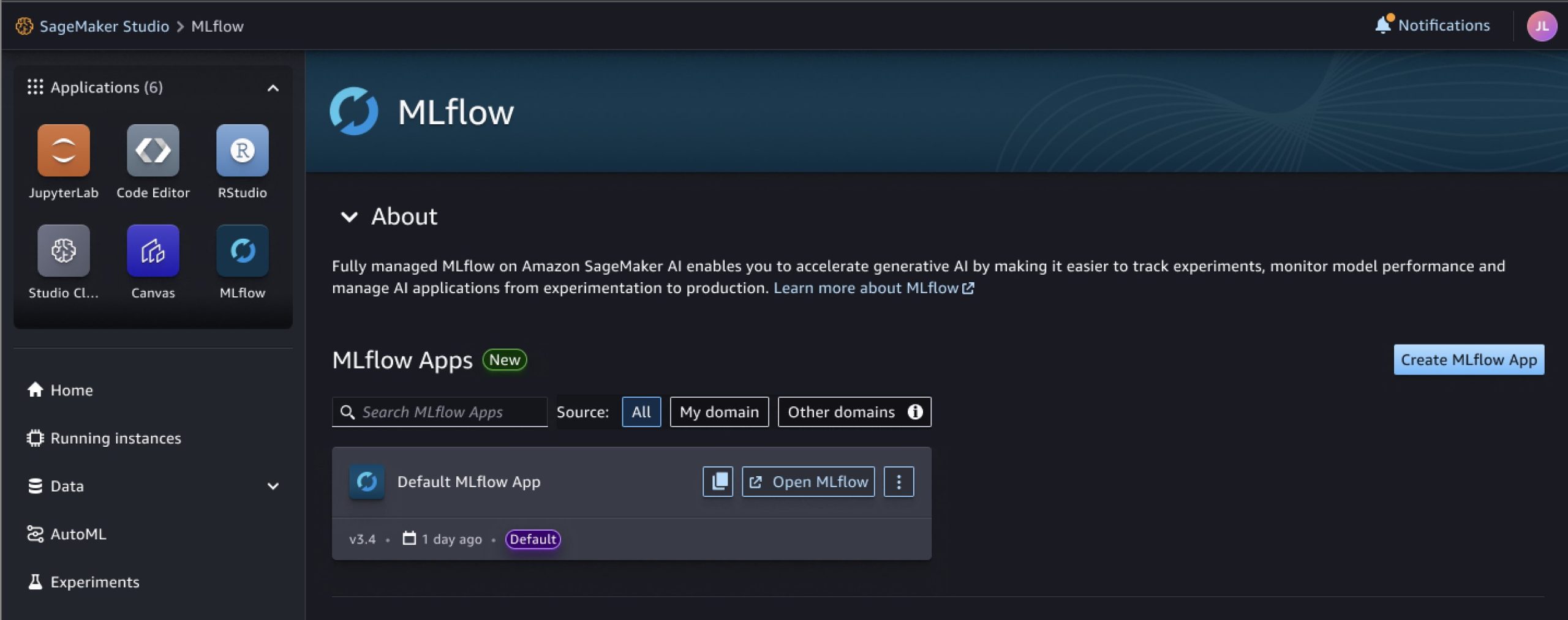
Figure 2: MLflow app in SageMaker Studio console
Alternatively, you can check this by executing the following AWS command line interface (CLI) command:
- Copy the Amazon Resource Name (ARN) of your tracking server into a document, it is needed in Step 4.
- choose open mlflowWhich takes you to a blank MLflow dashboard. In the next steps, we import our experiments and associated artifacts from our self-managed MLflow tracking server here.
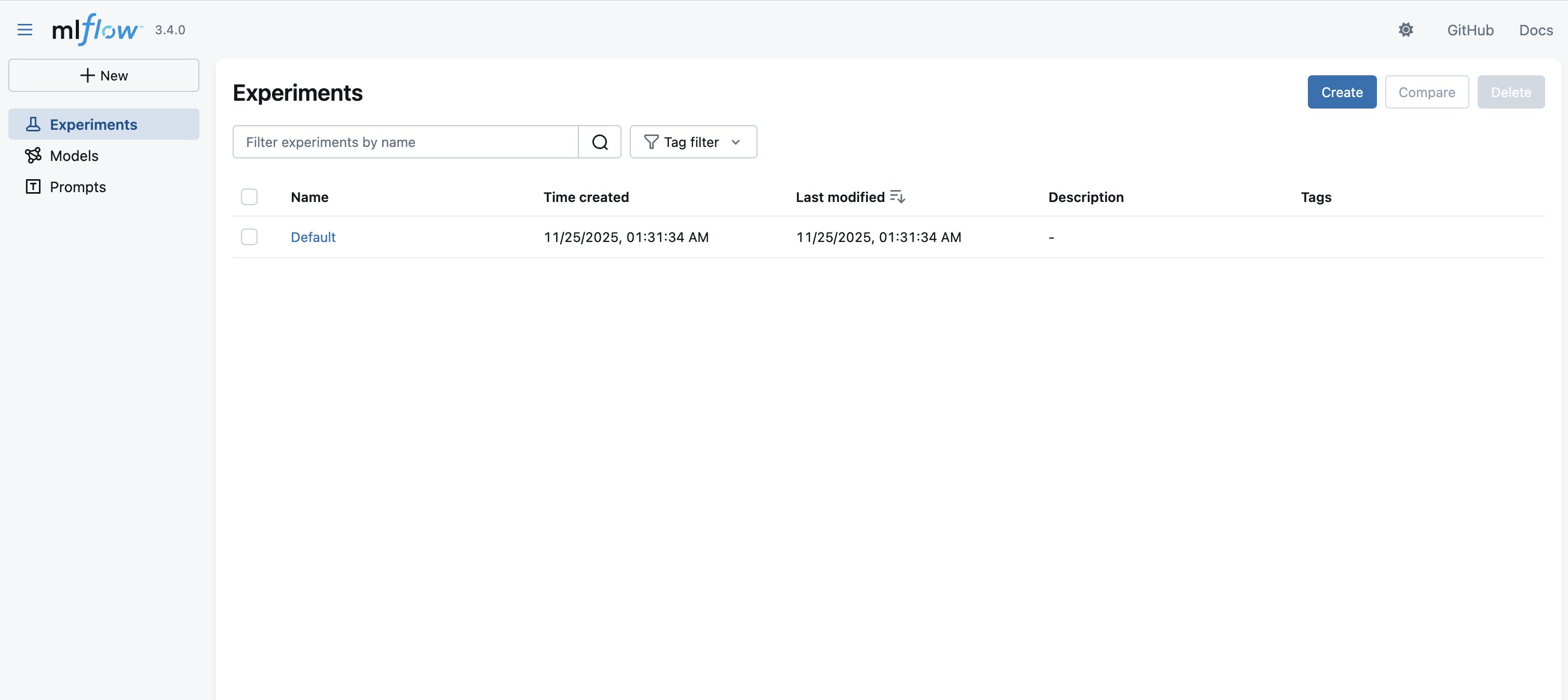
Figure 3: MLflow user interface, landing page
Step 3: Install MLFlow and the SageMaker MLFlow Plugin
To prepare your execution environment for migration, you need to establish connectivity to your existing MLflow server (see Prerequisites) and install and configure the required MLflow packages and plugins.
- Before you can begin the migration, you need to establish connectivity and authenticate to the environment hosting your existing self-managed MLflow tracking server (for example, a virtual machine).
- Once you have access to your tracking server, you will need to install mlflow and this SageMaker MLflow Plugin In your execution environment. The plugin handles connection establishment and authentication to your MLflow app. Execute the following command (see also documentation):
Step 4: Install MLflow Export Import Tool
Before you can export your MLFlow resources, you must install the MLFlow Export Import tool.
- Familiarize yourself with the capabilities of the MLFlow Export Import tool by visiting its GitHub pageIn the following steps, we use bulk equipment (ie
export-allAndimport-all), which allows you to create a copy of your tracking server with its experiments and associated artifacts. This approach maintains referential integrity between objects. If you want to migrate only selected experiments or rename existing experiments, you can use Single device. please review mlflow export import Documentation for more information on supported objects and limitations. - install mlflow export import Tools in your environment by executing the following commands:
Step 5: Export MLflow Resources to a Directory
Now that your environment is configured, we can begin the actual migration process by exporting your MLFlow resources from your source environment.
- After installing the MLflow export import tool, you can create a target directory in your execution environment as the destination target for the resources that you extract in the next step.
- Inspect your existing experiments and the associated MLFlow resources you want to export. In the following example, we want to export currently stored objects (for example, experiments and registered models).
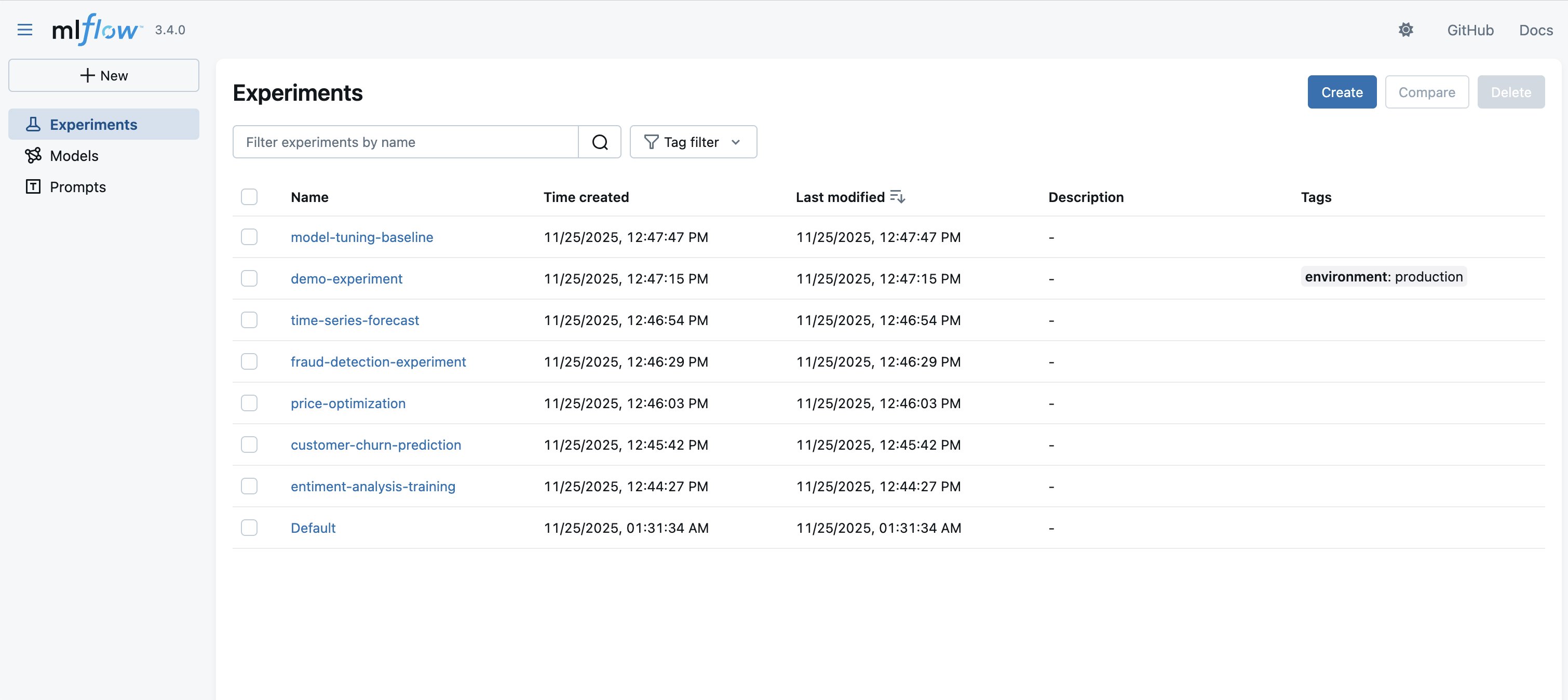
Figure 4: Stored experiments in MLflow
- Start the migration by configuring your tracking server’s Uniform Resource Identifier (URI) as an environment variable and executing the following bulk export tool with parameters to your existing MLflow tracking server and a target directory (see also documentation),
- Wait until the export is finished to inspect the output directory (in the previous case:
mlflow-export,
Step 6: Import MLflow Resources into Your MLflow App
During import, user-defined attributes are retained, but system-generated tags (for example, creation_date) are not protected by MLflow export import. To preserve the original system characteristics, use --import-source-tags Options as shown in the following example. It saves them as tags mlflow_exim Prefix. For more information see MLflow Export Import – Governance and LineageBe aware of the additional limitations detailed here: import limits,
The following process transfers your exported MLFlow resources to your new MLFlow app: Start the import by configuring the URI for your MLFlow app. You can use the ARN for this – the one you saved in step 1. The pre-installed SageMaker MLflow plugin automatically translates the ARN to a valid URI and makes an authenticated request to AWS (remember to configure your AWS credentials as environment variables so the plugin can pick them up).
Step 7: Verify your migration results
To confirm that your migration was successful, verify that your MLFlow resources were transferred correctly:
- Once the import-all script has migrated your experiments, runs, and other objects to the new tracking server, you can begin confirming the success of the migration by opening the dashboard of your serverless MLFlow app (the one you opened in Step 2) and verifying it:
- Exported MLflow resources exist with their original names and metadata
- Run histories are complete with metrics and parameters
- Model artworks are accessible and downloadable
- Tags and notes are preserved
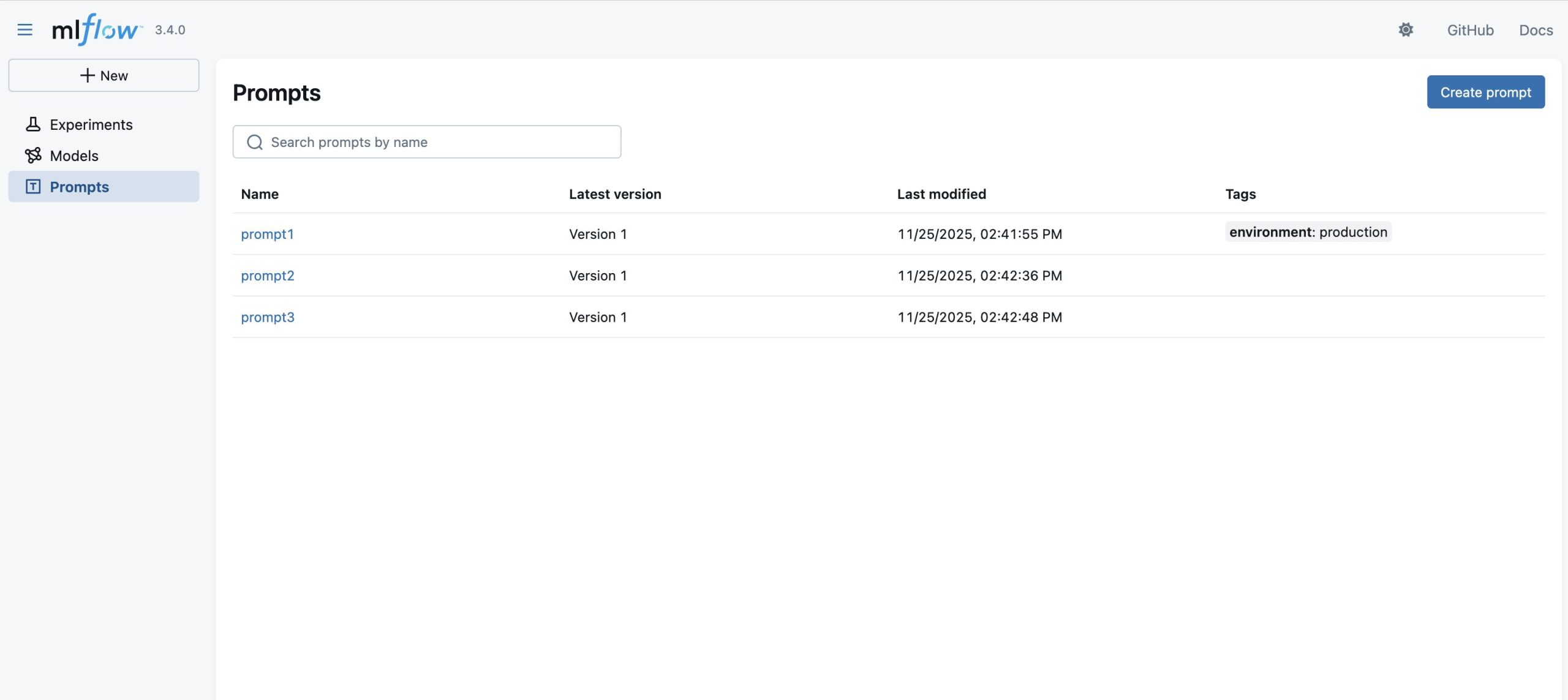
Figure 5: MLflow user interface, landing page after migration
- You can verify programmatic access by starting a new SageMaker notebook and running the following code:
Idea
When planning your MLFlow migration, verify that your execution environment (whether EC2, local machine, or SageMaker notebook) has sufficient storage and computing resources to handle the data volume of your source tracking server. While migrations can run in different environments, performance may vary depending on network connectivity and available resources. For large-scale migrations, consider breaking the process into smaller batches (for example, individual experiments).
cleanliness
The SageMaker Managed MLFlow Tracking Server will incur costs until you remove or shut it down. Billing for the tracking server is based on the length of time the server runs, the size selected, and the amount of data logged on the tracking server. You can turn off tracking servers when they are not in use to save costs, or you can delete them using the API or SageMaker Studio UI. For more information about pricing, see Amazon SageMaker pricing.
conclusion
In this post, we showed how to migrate a self-managed MLFlow tracking server to SageMaker with MLFlow using open source. mlflow export import tool. Migration to serverless MLFlow apps on Amazon SageMaker AI reduces the operational overhead associated with maintaining MLFlow infrastructure while providing seamless integration with broader AI/ML services in SageMaker AI.
To begin your own migration, follow the preceding step-by-step guide and see the referenced documentation for additional details. You can find code samples and examples in our AWS Samples GitHub RepositoryFor more information about Amazon SageMaker AI capabilities and other MLOps features, visit the Amazon SageMaker AI documentation,
About the authors
 Rahul Ishwar is a Senior Product Manager at AWS, leading managed MLflow and partner AI apps within the SageMaker AIOps team. With over 20 years of experience spanning startup to enterprise technology, he leverages his entrepreneurial background and MBA from Chicago Booth to build scalable ML platforms that simplify AI adoption for organizations around the world. Connect with Rahul on LinkedIn to learn more about his work in ML platforms and enterprise AI solutions.
 roland odorfer is a Solutions Architect at AWS based in Berlin, Germany. He works with German industry and manufacturing customers, helping them design secure and scalable solutions. Roland is interested in distributed systems and security. He enjoys helping customers use the cloud to solve complex challenges.
 Anurag Gajam is a Software Development Engineer with the Amazon SageMaker MLflow team at AWS. His technical interests extend to AI/ML infrastructure and distributed systems, where he is a recognized MLFlow contributor, having enhanced the MLFlow-export-import tool by adding support for additional MLFlow objects to enable seamless migration between SageMaker MLFlow services. He specializes in solving complex problems and building reliable software that powers AI workloads at scale. In his spare time he likes to play badminton and take walks.
