
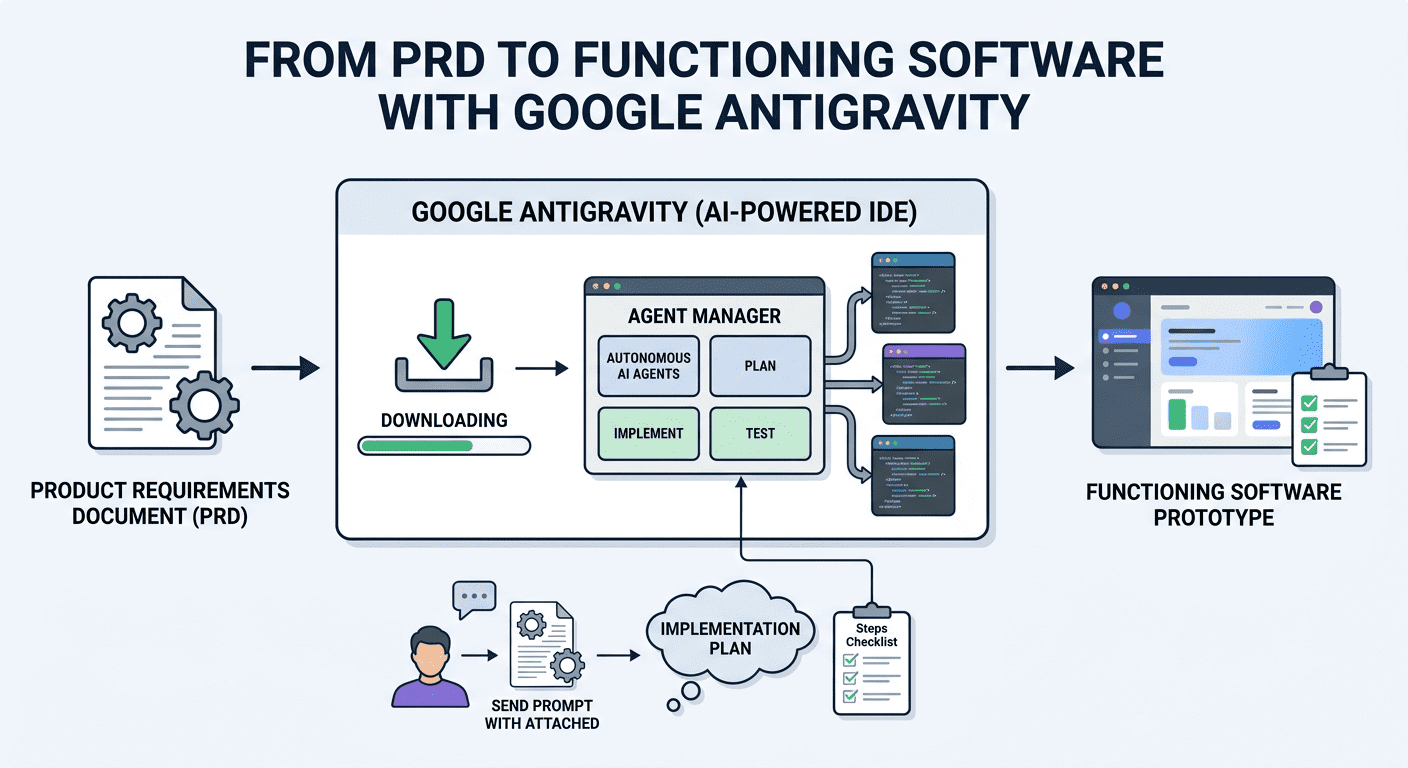
A Product Requirements Document (PRD) is a familiar artifact in product management and software development, but writing one is only the beginning. The harder step is turning that document into working software. This walkthrough continues a companion piece that turned raw, messy notes into a grounded PRD, and follows the same example — a mobile-friendly app called FloraFriend — to show how that PRD can become a functioning prototype using Google Antigravity, Google’s agentic development platform. The full build is too long to reproduce in detail, so the focus here is on representative excerpts and the main lessons of working with the tool.
What Google Antigravity is
Antigravity is an agent-first development environment built around Google’s Gemini models. Rather than autocompleting code line by line, it lets autonomous agents plan, implement, and test a solution, while a manager interface lets a developer spawn and observe those agents and review the artifacts they produce, such as task lists and implementation plans. The interface will feel familiar to anyone who has used VS Code.
Moving from PRD to a prototype
The process begins by opening Antigravity and creating a new, empty project folder — here named flora-friend-app. Opening that empty folder in the editor produces a workspace much like a standard code editor:

First steps with the Agent Manager
The next step is to open the Agent Manager view from the top bar, which presents a short explanation of what its agents can do:

From here, a first prompt is prepared (but not yet sent) asking for an implementation plan for a mobile-friendly web app:
Work as a senior full stack engineer. Please review the attached PRD for ‘FloraFriend’. Create a comprehensive implementation plan to build it as a mobile-first web app using Next.js, Tailwind CSS, and Shadcn UI. Don’t write code yet; First, strictly prepare the plan artifact.
For the best results, a real PRD should be attached — for example, one generated in the earlier PRD walkthrough. There are two main options: paste the PRD text directly into the prompt, or place the PRD file (.docx, .pdf, or similar) into the project folder and reference it. When pasting, using Shift + Enter to add new lines and inserting the PRD immediately after the request keeps everything in a single prompt. Because Gemini offers a very large context window, a long PRD can be included without much friction.
After a minute or two, the agent returns a plan that looks something like this:

The Agent Manager shows a checklist of project steps on the right, such as setting up a Next.js app. This plan can be reviewed and refined: the “Review” button allows additional prompts that amend or add items, for example:
Add “Build Component: PlantCard (with snooze logic)” and “Weekender Logic” to the backend tasks.
New or modified items then appear on the checklist. Once the plan looks right, the next move is less obvious than it should be — a common friction point. The key is to scroll up through the generated artifacts in the chat stream, find the box labelled “Implementation Plan,” open it, and click “Proceed” on the right.

From there, the agents begin executing the checklist, typically requiring manual review and approval at each stage before moving on, with the checklist boxes ticking off as work completes. Occasionally a step needs a dependency installed manually or a similar local fix before the agents can continue. In practice, the work comes down to careful, iterative conversation and prompting. A representative excerpt of the final app’s code looks like this:
// components/PlantCard.tsx
import { useState } from 'react';
import { Card, Button, Badge } from '@/components/ui';
import { WaterDropIcon, SnoozeIcon } from '@/icons';
interface PlantProps {
name: string;
species: string;
nextWatering: Date;
onSnooze: (id: string) => void;
onWater: (id: string) => void;
}
export default function PlantCard({ name, species, nextWatering, onSnooze, onWater }: PlantProps) {
const isOverdue = new Date() > nextWatering;
return (
{/* Visual Cue for Overdue Plants */}
{isOverdue && (
Thirsty!
)}
{/* The "Matt Feature" - Snooze Button */}
Next scheduled: {nextWatering.toLocaleDateString()}
);
}Limitations and what to watch
An agentic build like this speeds up scaffolding but does not remove the need for engineering judgement. Generated code still requires review for correctness, security, and maintainability, and the agents can stall on environment issues — missing dependencies, paths, or permissions — that a human must resolve. Navigation can be unintuitive, as the “Proceed” step shows, and outputs vary between runs of the same prompt. Antigravity is also an evolving product, so specific buttons, views, and behaviours may change. Treated as a fast way to move from a clear PRD to a reviewable prototype, rather than a hands-off code generator, it is a useful addition to a developer’s toolkit.
Wrapping up
This example shows how Google Antigravity can convert a structured PRD into a working software prototype, with autonomous agents handling planning, implementation, and testing under human review. The pattern — clear requirements in, reviewable prototype out — is the most transferable lesson, independent of any single feature.
Official documentation is available on the Google Antigravity site and the Google Developers blog. For related reading on this site, see coverage of enterprise AI deployment.
